

Flow JSON
Leverage Flow JSON to build your user experience. To visualize the complete user experience, use the Builder. The Builder emulates the entire Flow experience and can be updated on the fly. To navigate to the Builder:- Choose your business
- Click on All tools in the left side navigation
- Open WhatsApp Manager and select your WABA
- On the left side navigation, go to Account tools > Flows
Introduction
Flow JSON enables businesses to create workflows in WhatsApp by accessing the features of WhatsApp Flows using a custom JSON object developed by Meta. These workflows are initiated, run, and managed entirely inside WhatsApp. It can include multiple screens, data flows, and response messages. Flow JSON consists of the following sections:Top-level Flow JSON Properties
Flow JSON has several required and optional properties that are used in the process of compilation and validation of the Flow.Required properties
-
version- represents the version of Flow JSON to use during the compilation. Please refer to the list of versions for more details. -
screens- represents an array or screen as part of the user experience. This is like a set of different pages on your website.
Optional properties
-
routing_model- represents a routing ruling system. The routing model is generated automatically if your Flow doesn’t use a Data Endpoint. If it does, the validation system will ask you to provide a routing model. -
data_api_version- represents the version to use during communication with the WhatsApp Flows Data Endpoint. Currently, it is3.0.If flow uses the data-channel capability, the validation system will ask to provide this property. -
data_channel_uri- represents the URL of the WhatsApp Flows Data Endpoint. If a Flow uses the data-channel capability, the validation system will ask to provide this property.
data_channel_uri is not supported by Flow JSON as of version 3.0. For Flow JSON 3.0, please configure the URL of your Flow Data Endpoint using the endpoint_uri field provided by the Flows API.
Screens
Screens are the main unit of a Flow. Each screen represents a single node in the state machine you define. These properties then make up the Flows screen property model:Required properties
-
id- unique identifier of the screen which works as a page url. SUCCESS is a reserved keyword and should not be used as a screen id. -
layout- associated screen UI Layout that is shown to the user. Layout can be predefined or it can represent a container with fully customizable content built using WhatsApp Flows Library.
Optional properties
-
terminal(optional) - the business flow is the end state machine. It means that each Flow should have a terminal state where we terminate the experience and have the Flow completed. Multiple screens can be marked as terminal. It’s mandatory to have a Footer component on the terminal screen. -
data(optional) - declaration of dynamic data that fills the components field in the Flow JSON. It uses JSON Schema to define the structure and type of the properties. Below you can find the simple example.
-
title(optional) - screen level attribute that is rendered in the top navigation bar. -
success- (optional, only applicable on terminal screens) - Defaults totrue. A Flow can have multiple terminal screens with different business outcomes. This property marks whether terminating on a terminal screen should be considered a successful business outcome. -
refresh_on_back(optional, and only applicable for Flows with a Data Endpoint) - Defaults tofalse. This property defines whether to trigger a data exchange request with the WhatsApp Flows Data Endpoint when using the back button while on this screen. The property is useful when you need to reevaluate the screen data when returning to the previous screen (example below). -
sensitive- (optional, only applicable for Flows version 5.1 and above) - Defaults to an empty array. When a Flow is completed, users will see a new message UI, which can be clicked and users will be able to view the responses submitted by them. This array contains the names of the fields in the screen that contain sensitive data, and should be hidden in the response summary for the consumers.
Additional information on refresh_on_back
Given a simple Flow example with the following screens:
- User chooses an
Appointment Type. - User selects
Appointment Time. - User
Confirmsan appoinment.
refresh_on_back property in the Confirmation screen’s definition, you can control whether to refresh the list of available times, or to reload the previously shown list.
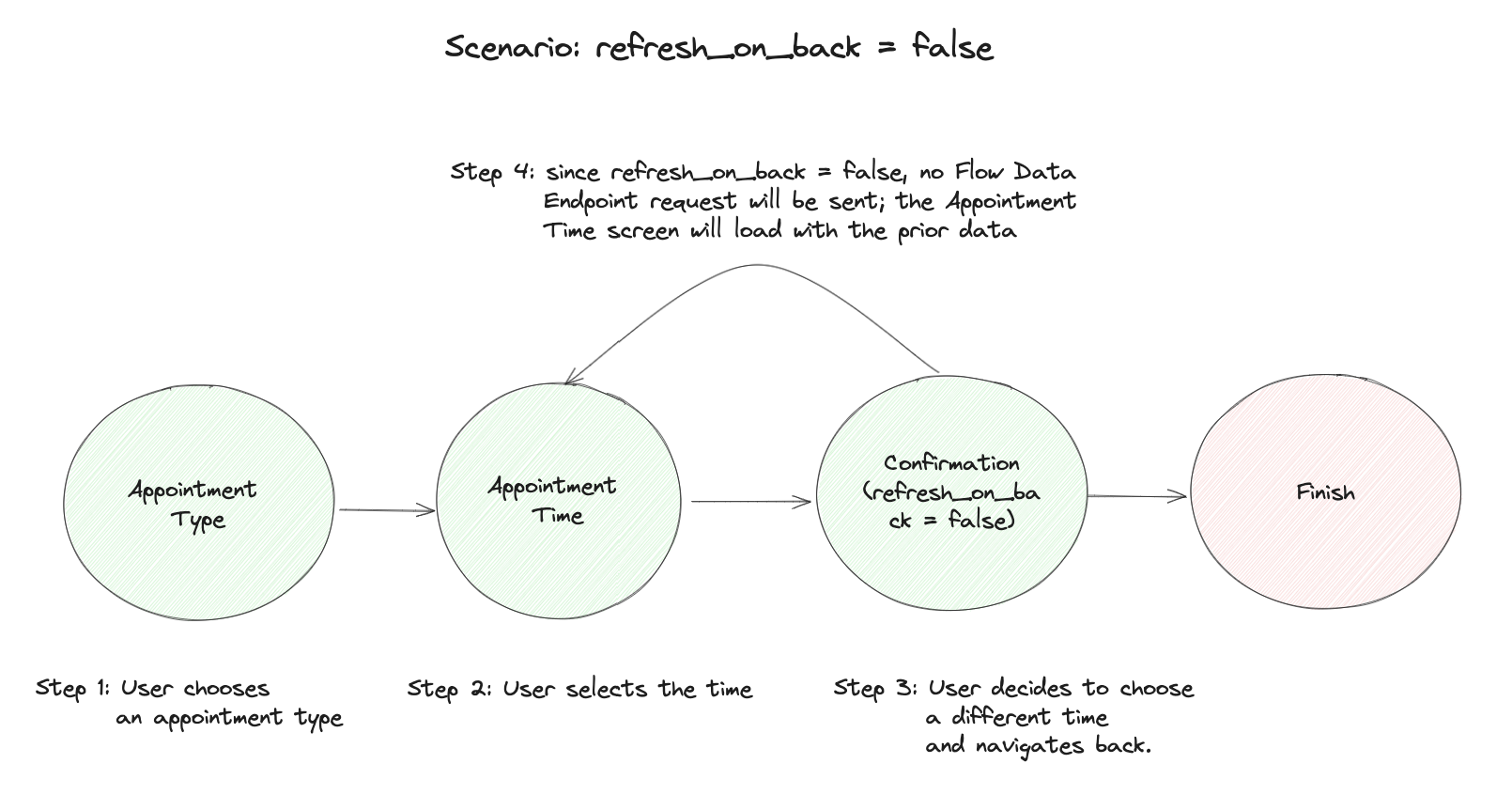
refresh_on_back=false (default)
Ifrefresh_on_back=false, when the user goes back to the Appointment Time screen the Flow will not request the Flow Data Endpoint and the screen will be loaded with the previously provided data, and the user’s prior input. This is the preferred behavior in most cases, given it avoids a roundtrip to the Flow Data Endpoint and provides a snappier experience for the user.
refresh_on_back=true
If, however, you need to revalidate or update the data for the screen, setrefresh_on_back=true on the screen from which the back action is triggered (the Confirmation screen in this example). Once the user navigates back to the Appointment Time screen, the Flow will send a request to the Flow Data Endpoint and display the screen with the data from the response.
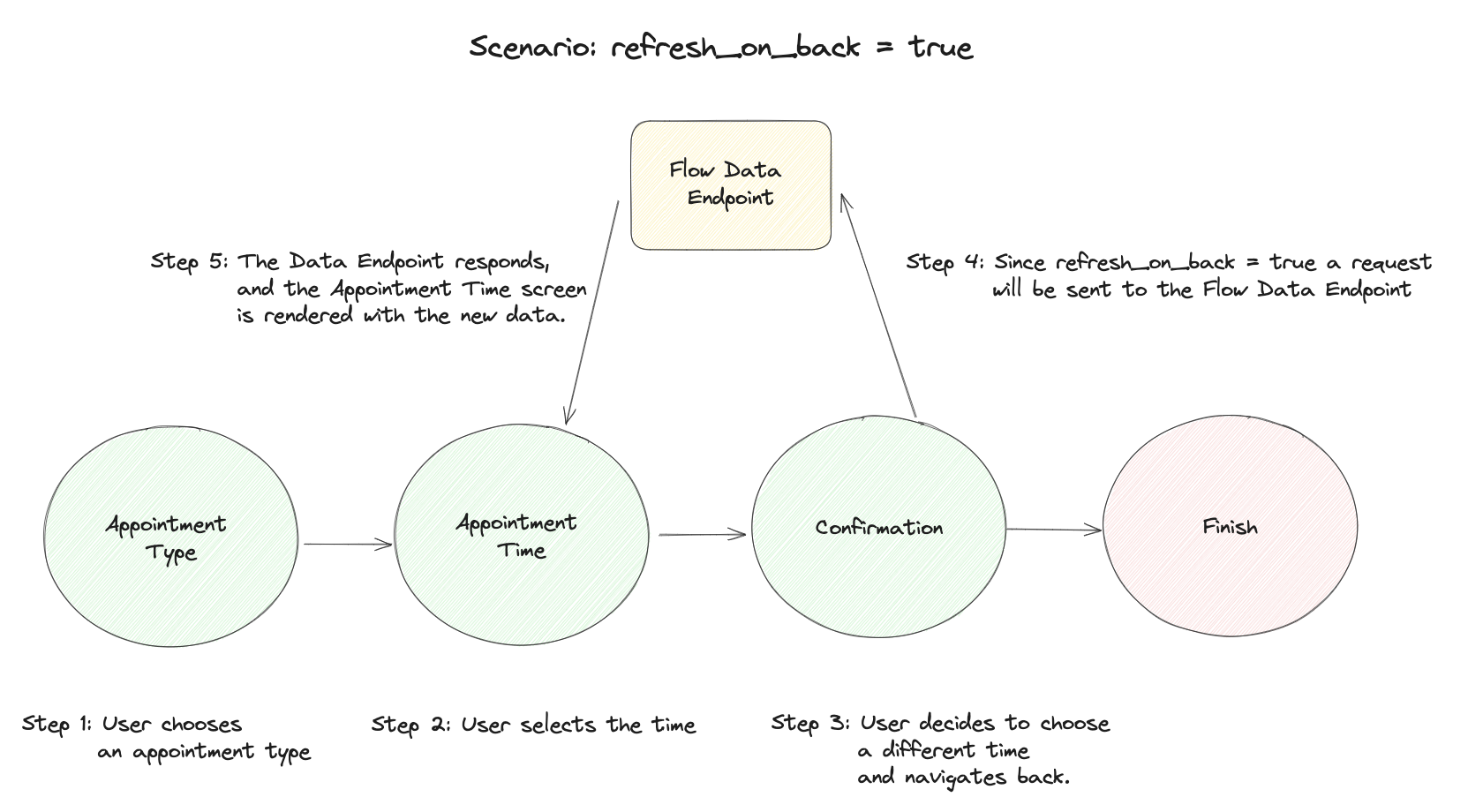
Flow Data Endpoint Request payload in case of refresh_on_back=true
The complete payload structure is defined here - in this case the action field will be BACK, and the screen will be set to the name of the Confirmation screen.
Additional information on sensitive fields
Given a Flow in which we mark certain fields as sensitive, we use the following masking configuration to display the summary upon the Flow’s completion:
Layout
Layout represents screen UI Content. It can be predefined by the WhatsApp Flows team, or the business can use empty containers and build custom experience using the WhatsApp Flows Library. Layout has the following properties:-
type- the layout identifier that’s used in the template. In the current version of Flow JSON, there is only one layout available -"SingleColumnLayout"which represents a vertical flexbox container. -
children- represents an array of components from the WhatsApp Flows Library.
Routing Model
Routing model configuration is needed only when you use an Endpoint to power your flow. You can define the routing model, which is a directed graph, as each screen can go to multiple other screens. There can be up to a maximum of 10 “branches”, or connections, within the routing model. Consider the following flow: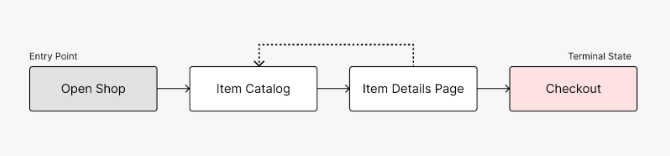 The following routing model can be built:
- Item Catalog => [Item Details Page]
- Item Details Page => [Item Catalog, Checkout]
- Checkout => []
When to define routes
If you don’t use an Endpoint, you don’t need to define a routing model, it will be generated automatically. However, if you want to use a server to power your Flow, you’ll have to provide arouting_model in your Flow JSON.
How to define routes
Routes are defined per screen via therouting_model property. It is a map of screen ids to an array of other screen ids it can transition to. The terminal screen is defined with terminal=true.
Routing rules
- Route cannot be the current screen, but the route can be “refreshed” for validation purposes.
- If there is an edge between two screens, then the user can go back and forth between them using the BACK button.
- Only forward routes should be specified in the routing model. For example, if you have specified an edge from Screen_A to Screen_B then you shouldn’t specify another edge from Screen_B to Screen_A.
- Routes can be empty for a screen if there is no forward route from it.
- There should be an entry screen in the routing model. A screen is eligible to be an entry screen if has no inbound edge.
- All routes must end at the terminal screen.
Routing Model Flow JSON Example (Endpoint)
In the example below, there is a simple 3-screen Flow that uses an Endpoint. It is expected that the server will return the next screen with a response todata_exchange action. The server has to comply with defined routing_model in the Flow JSON:
Flow JSON
{
Enter to Rename, Shift+Enter to Preview
Preview
Run
Settings
Select screen
MY_FIRST_SCREEN

Preview Flow Continue Managed by the business. Learn more Learn more
Properties
Properties can bestatic or dynamic. In Flow JSON the property is static if it is not a type binded to a data or form object.
Static properties
Static properties are simple. You set static properties once and they never change. Here is an example (seetext and label properties of TextHeading and Footer components). Static properties is the simplest way to start building your Flow. You can always replace them later with dynamic content.
Flow JSON
{
Enter to Rename, Shift+Enter to Preview
Preview
Run
Settings
Preview Flow
This is a static heading
Static footer label Managed by the business. Learn more Learn moreDynamic properties
Dynamic properties enables you to set the content dynamically based on the server / screen data via the dynamic data reference mechanism, like so:"${data.username}". If you attempt to use the dynamic and static variant of the property together, you will get a compilation error. The dynamic data reference mechanism works with the following data types:
- string
- number
- boolean
- object
- array
- Form properties -
"${form.field_name}"(data entered by the user in input fields). This is used to provide access to information that the user entered on the screen. - Screen properties -
"${data.field_name}"(data provided for the screen). This is used to provide access to information that is passed down by the server or thenavigateaction from the previous screen.
Nested Expressions
Supported starting with Flow JSON version 6.0 Nested expressions allow conditionals and string concatenation to be created and used in components` properties (exceptname and type properties). Dynamic and static properties work as stated in this document in the previous sections, to enable nested expressions you need to wrap the property with backticks (“). Check below how to use it with all the available operations (code snippets provided). The available operations are:
- Equality comparisons (
==,!=) - Math comparisons (
<,<=,>,>=) - Logical comparisons (
&&,||) - String concatenation
- Math operations (
+,-,/,%)
Equality comparisons
Code snippet with strings:
Math comparisons
Code snippets:
Logical comparisons
Code snippets:
String Concatenation
Code snippets:
Math operations
Note that in case of division or modulo for
zero or null value, the result will be zero to avoid not a number issue.
Code snippets:
Declaring screen properties (No endpoint example)
If a screen expects dynamic data, declare it inside thedata property. Data declaration uses the standart JSON Schema. A simple Flow example would replace text with dynamic data coming from the message payload:
Flow JSON
{
Enter to Rename, Shift+Enter to Preview
Preview
Run
Settings
Preview Flow
Hello World
Static footer label Managed by the business. Learn more Learn more A few things have been added:-
Inside
MY_FIRST_SCREENwe declared a data field -
Inside the data field we declared
hello_world_text. This is the data that we expect to receive for screen.hello_world_textfollows the JSON Schema specification to declare the expected type, in this example it is a string.__example__field serves as mock data for the template, which is useful while you’re developing your template without WhatsApp Flows Data Endpoint integration. This field is mandatory.
-
In
TextHeadingwe’ve referenced the data via dynamic data reference syntax. $ represents an object that came from the WhatsApp Flows Data Endpoint ornavigateactions in case of Flow without endpoint. You can treat it as a screen state that was set after the response is received. -
Property of the state can be accessed using the following pattern -
"${data.property_name}"
Declaring screen properties (Endpoint powered example)
If you want to power the screen by endpoint data, the example above will slightly change.-
We’ve added
data_api_version,routing_modelanddata_channel_urito indicate that the flow is connected to server. -
We’ve added
data_api_versionandrouting_modelto indicate that the flow is connected to server.data_channel_urishould also be added if the Flow JSON version is less than3.0. -
Flow expects to receive a payload from flow data server containing
hello_world_textfield.
Preview Flow
Hello World
Static footer label Managed by the business. Learn more Learn moreForms and Form properties
The use of the Form component is optional starting fromFlow JSON versions 4.0. This means that you can submit user-entered data without the need to wrap your components inside a Form component any more.
To get and submit the data entered from users, Flow JSON uses a straightforward concept from HTML - Forms.
HTML Form example:
Preview Flow
First name
First nameSecond name
Second name Favourite Languages(optional)- Javascript
- CSS
- HTML
Flow JSON versions 4.0 is as follows:
Flow JSON
{
Enter to Rename, Shift+Enter to Preview
Preview
Run
Settings
Preview Flow
First name
First nameSecond name
Second name Favourite Languages(optional)- Javascript
- CSS
- HTML
Using Form properties
Using example above, we can reference form properties using a"${form.field_name}" binding. This type of binding uses name property of the interactive inputs to reference its value. You can use form values to submit the data to a flow data server or pass it another screen.
Passing data to the next screen:
Submitting data to the server:
Building forms guidelines
-
In order to build Forms in Flow JSON you need to use Form components then provide the
nameandchildrenproperties - Children properties must be an array of Form components
-
Each Form component has its own property model, however the
nameproperty is required in all of them
Form configuration
Initial values of inputs can be initiased usinginit-values property. error-messages property allows you to set custom error for input. This is useful when you use Flow Data Endpoint to receive user data and you want to indicate that certain fields are incorrect.
You set
init-values by specifying the field name in the respective component, then mapping it to your desired value.
The data type for init-values must match that of the component as outlined below.
For example, if you have the field
first_name in one TextInput component, the field second_name in another TextInput component you would set the init-values like so:
Flow JSON
{
Enter to Rename, Shift+Enter to Preview
Preview
Run
Settings
Preview Flow
First name
First nameSecond name
Second name Submit data Managed by the business. Learn more Learn more Starting fromFlow JSON versions 4.0, the utilization of the Form component has become optional. In the event that you opt not to use the Form component, you can still initialize the initial values of inputs by employing the init-value property, and set custom errors for each input with error-message property. Here is an example showcasing how to initialize values without utilizing the Form component:
Flow JSON
{
Enter to Rename, Shift+Enter to Preview
Preview
Run
Settings
Preview Flow
First name
First nameSecond name
Second name Submit data Managed by the business. Learn more Learn moreGlobal dynamic and form properties
Supported starting with Flow JSON version 4.0 Starting fromFlow JSON Version 4.0, you can use Global Dynamic Referencing feature. It has the following syntax:
screen- global variable that gives access to screen storagescreen_name- name of the screen to refer(form | data)- type of storage you want to reference - Form / Dynamic datafield-name- name of the field you want to reference
Where it can be used
- Component properties that support
dynamicdata - Action payloads
- Screen titles
- Conditional components
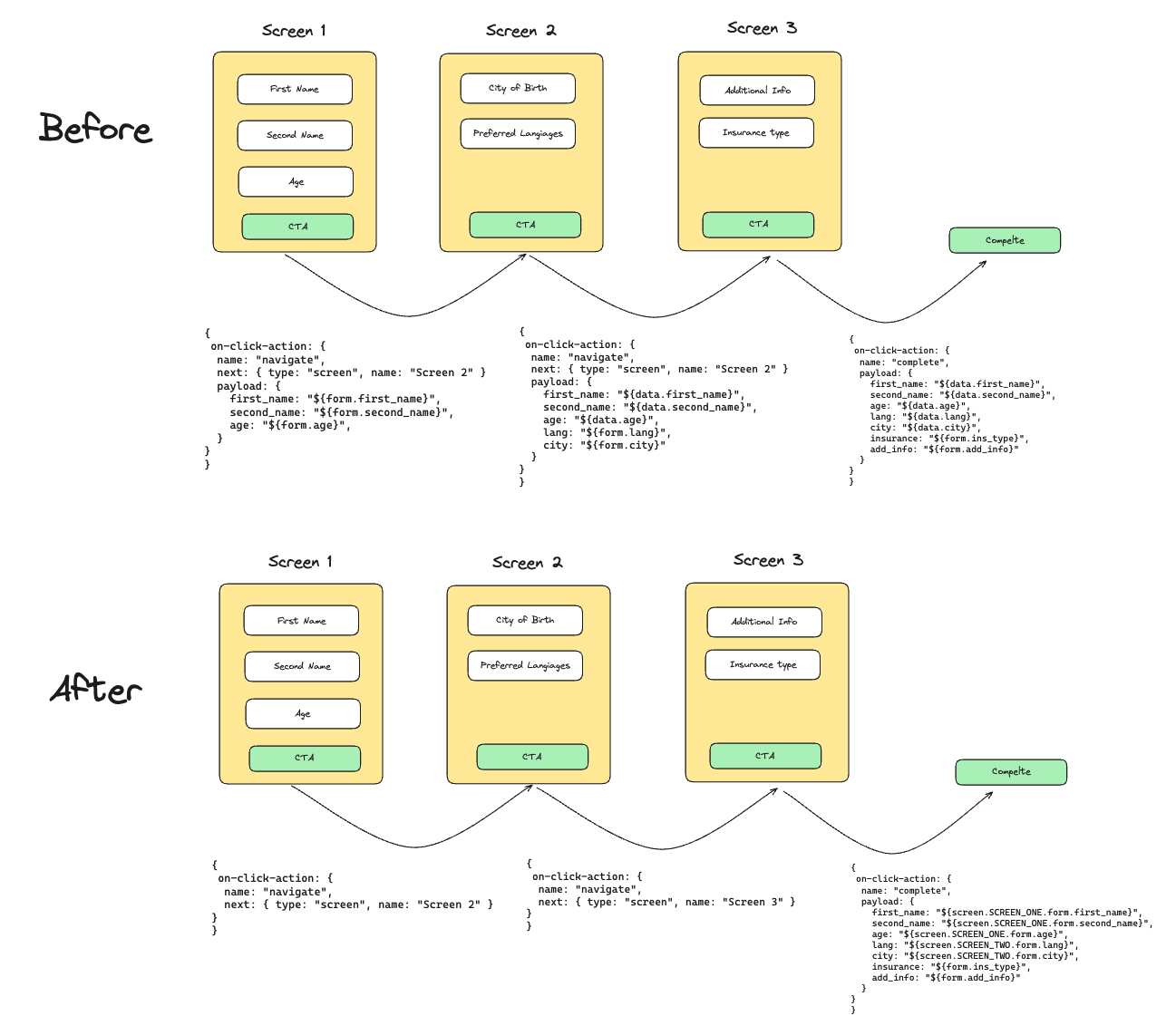
Example 1 - Carrying data forward
 Before
 Flow JSON Version 4.0, to transfer data from one screen to another you would need to use navigate action. For instance to transfer the data from SCREEN_ONE to SCREEN_TWO, you would write the
following:
navigate since all data now is globally accessable, so instead you can keep payload as empty {}
SCREEN_TWO you can reference it as:
Example 2 - No screen data declaration for global fields
When you use global fields on the screen, you don’t need to specify them in the data model. Global fields utilise data-model of the parent screens.
See example below, we use ${screen.SCREEN_ONE.form.field1} and ${screen.SCREEN_ONE.data.field2} on SCREEN_TWO, since the data comes from SCREEN_ONE, we keep
data model as empty on SCREEN_TWO
Flow JSON
{
Enter to Rename, Shift+Enter to Preview
Preview
Run
Settings
Select screen
SCREEN_ONE
Preview Flow
Enter your name
Enter your name(optional)
(optional) CTA Managed by the business. Learn more Learn moreExample 3 - Forward references
When you use global fields on the screen, you can also reference “future” screens. The only caveat is that you need to handle empty values. This can be done withConditional Rendering components.
See example below:
SELECT_SERVICESscreen references the data fromSELECT_INSURANCE- When value from
SELECT_INSURANCEscreen is empty - we displayYou haven't selected any insurance type - When value is not empty, based on selected value - we display different text via
Switchstatement
Preview Flow
Select insurance type
You haven’t selected any insurance type Choose insurance type Complete Managed by the business. Learn more Learn moreActions
Flow JSON provides a generic way to trigger asynchronous actions handled by a client through interactive UI elements. The following actions are supported:navigate action
This action is a primary way to navigate between the screens of the flow. The data that’s passed as payload of this action will be available on the next screen through dynamic data referencing - ${data.field_name}. You shouldn’t use it on the Footer of a terminal screen because that will prevent the flow from terminating.
When to use
Use this action when you need to transition to another screen.Example
complete action
Terminates the flow and sends the response message to the chat thread. The business will receive the termination message bubble on the webhook, together with the flow_token and all of the other parameters from the payload. More information can be found here.
When to use
Use this action onterminal screen as a last interaction of the user. Once triggered, the flow will be terminated and entered data will be submitted via webhook.
We strongly recommend to only include data inputted by the user in the Flow’s completion payload, and to keep the payload size to a minimum. Avoid leveraging the completion payload to send base64 images.
Example
Example of flow using navigate and complete actions
Flow JSON
{
Enter to Rename, Shift+Enter to Preview
Preview
Run
Settings
Select screen
LOGIN
Preview Flow
Name
NameSecond name
Second name Continue Managed by the business. Learn more Learn moredata_exchange action
Sends data to WhatsApp Flows Data Endpoint.
When to use
Use can only use this action if your Flow is powered by a Data Endpoint. Use this action when you need to submit data to your server before transitioning to the next screen or terminating the flow. Your server could then decide on the next step and provide the input for it.Example
update_data action
This action is supported from Flow JSON version 6.0 onwards.
This allows us to updates the state of the current screen based on user interactions. For example, when a user selects a value from a dropdown, another dropdown on the screen can be updated immediately. The data that’s passed as payload of this action can have multiple key-value pairs, where the key references the dynamic data of the screen where we are using this action. The value of the payload can be form/data, and can be referenced using the global dynamic referencing syntax.
When to use
Use the update_data action to dynamically update the content displayed on a screen based on user interactions, without the need to navigate away or refresh the screen. This action is particularly beneficial in scenarios where:- Immediate Response Required: You need to update elements on the same screen in response to user inputs. In the provided example, selecting a country from the dropdown triggers an immediate update to the state dropdown. This ensures that users experience no delay in seeing relevant options, enhancing the responsiveness of the application.
- Dynamic Data Handling: This action excels in scenarios where data relationships are dynamic yet predefined within the components data-source. In the example, each country object includes its related states, allowing the state dropdown to update seamlessly based on the country selected without additional data requests. This efficient handling of data reduces load times and server dependency.
- Reusable Templates: Utilizing update_data promotes the reuse of flow components across different data contexts. The state dropdown in the example is a single component that is repopulated with different data depending on the country selected. This approach minimizes the need for multiple distinct templates, simplifying the application structure and reducing development effort.
Examples
RadioButtonsGroup Example
Flow JSON { Enter to Rename, Shift+Enter to Preview Preview Run Settings
Preview Flow Select country:(optional)
- USA
- Canada
open_url action
This action is supported from Flow JSON version 6.0 onwards.
This action opens the URL of a website that loads in the device’s default mobile web browser when the URL text in the Flow is tapped by the user. It can be used only with the EmbeddedLink and OptIn components.