

Emojis
Always consider the context of the content when using emojis, such as:- Are they appropriate to use?
- Will they add to the content?
- Do they reflect the business brand?
Error Handling
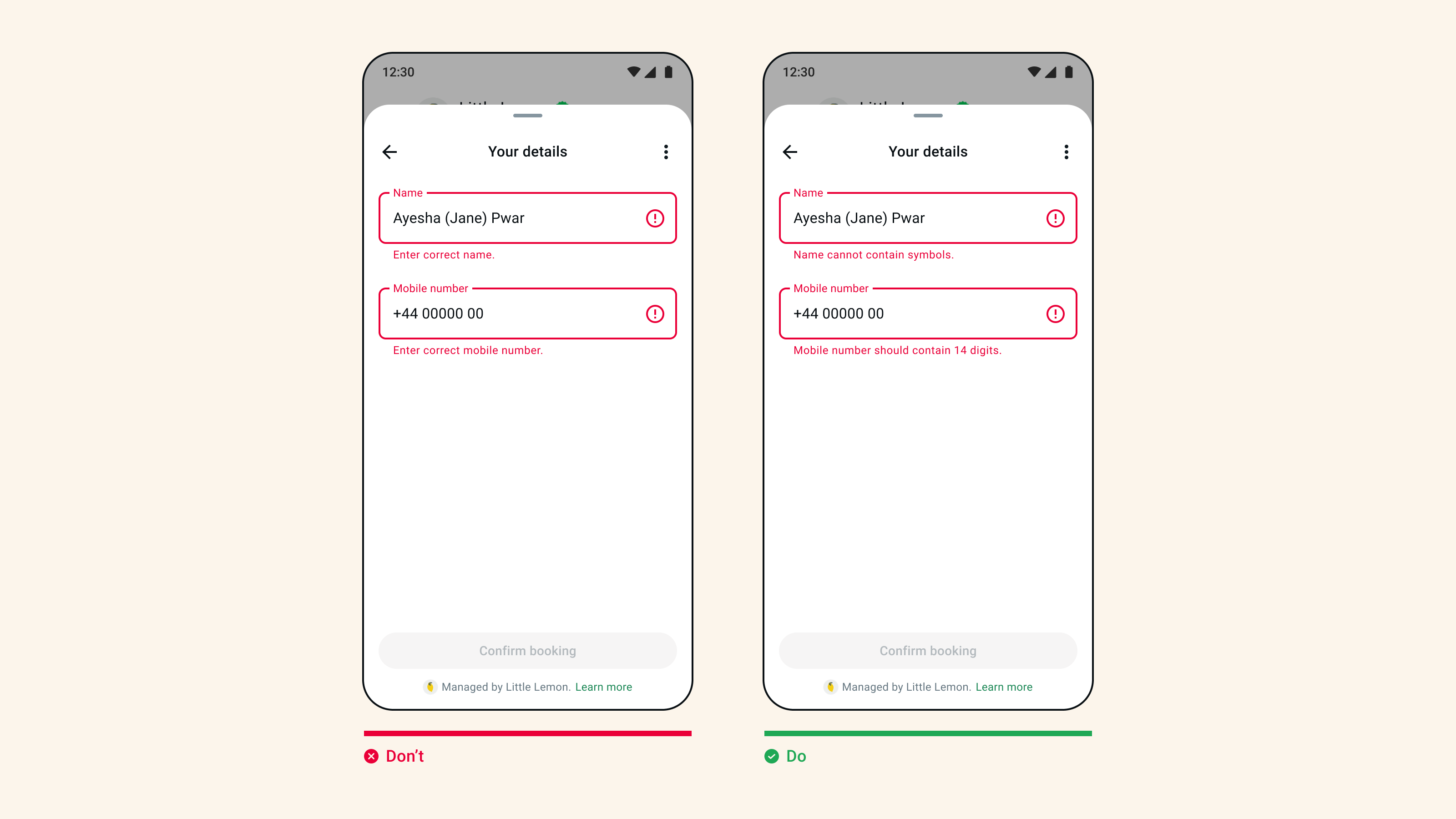
- Errors should be clearly communicated to the user, include what has happened and how to resolve it.
- Make sure validation rules are clearly communicated, such as if a user tries to enter a password that is not long enough.
- If the flow is exchanging data with your endpoint and a screen becomes invalid (eg. appointment booking), take the user back to the previous screen rather than ending the flow.
Diverging Flows
If you need to create a sub flow for certain use cases (eg. a forgot password flow), try to keep it to a maximum of 3 screens and always take the user back to the main flow and task at hand.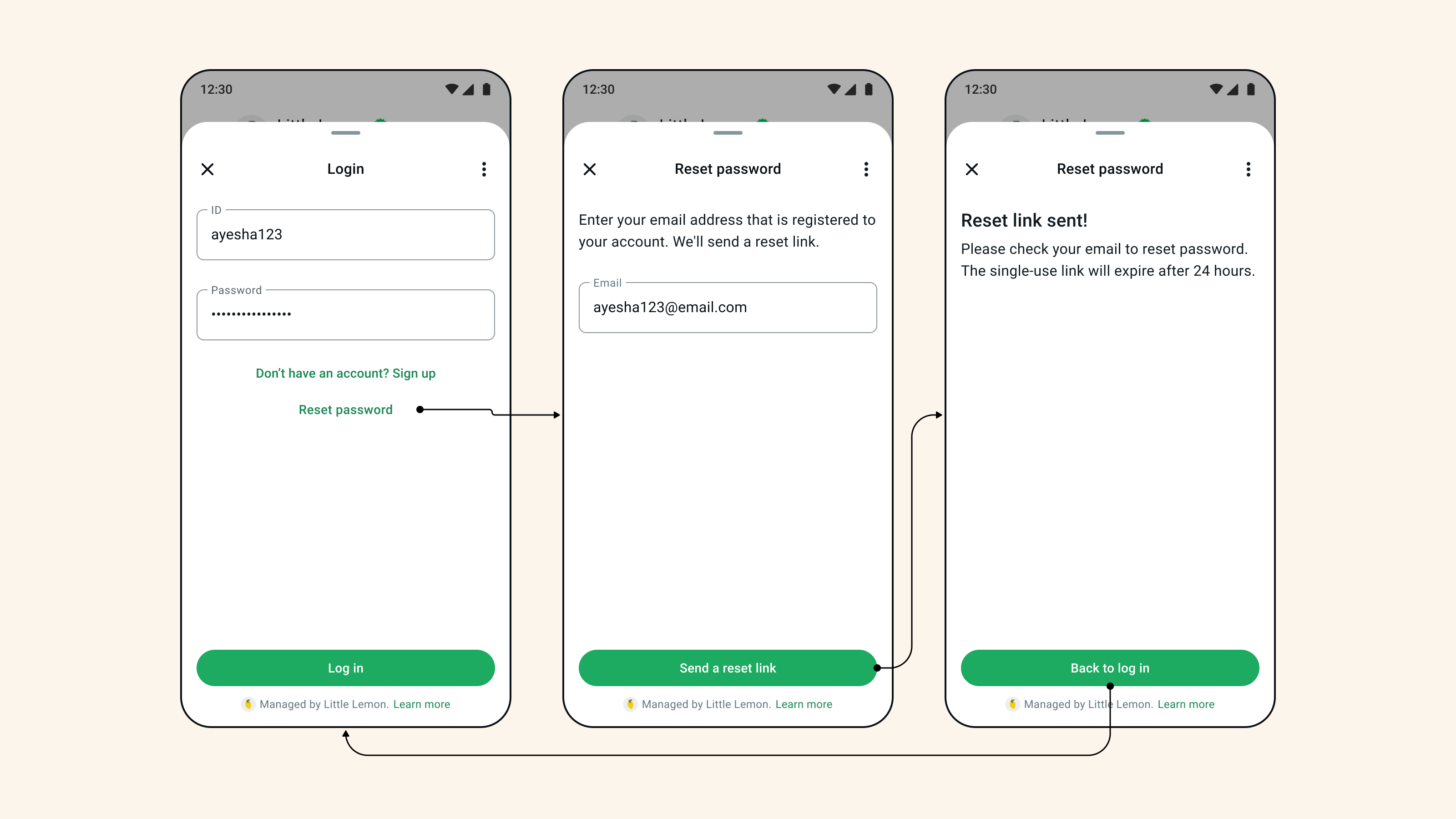
Form Quality
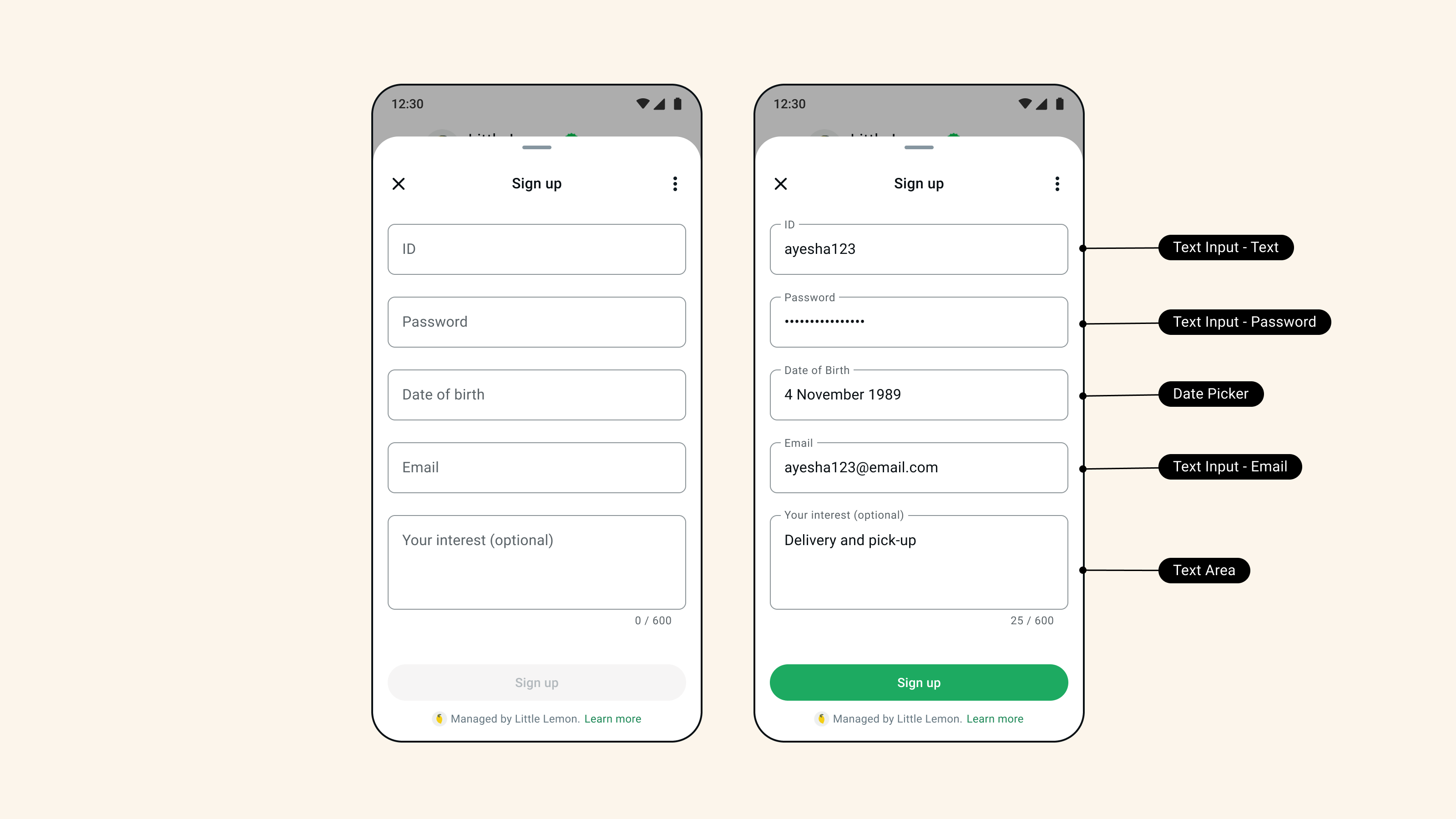
- Always use the right components for specific actions, for example use the date picker to capture DOB.
- If an input requires a lot of text, use the text area component and not the text input.
- Questions and from labels must provide full clarity on what it is asking the user.
- Forms or questions should be logically ordered, for example first name, last name etc.
- Forms that are not critical to completing a task should be made optional to the user.
Formatting
Ensure that any information is correctly formatted for context, for example currency symbols, phone numbers, and dates.Grammar and Spelling
- Always check the content in your flows before publishing.
- Ensure you use consistent spelling and capitalization for certain terms.
- Check your grammar such as ensuring sentences use full-stops.
Helper Text
Helper text should provide clarity for users, eg. the correct format for a phone number, date input, or email address.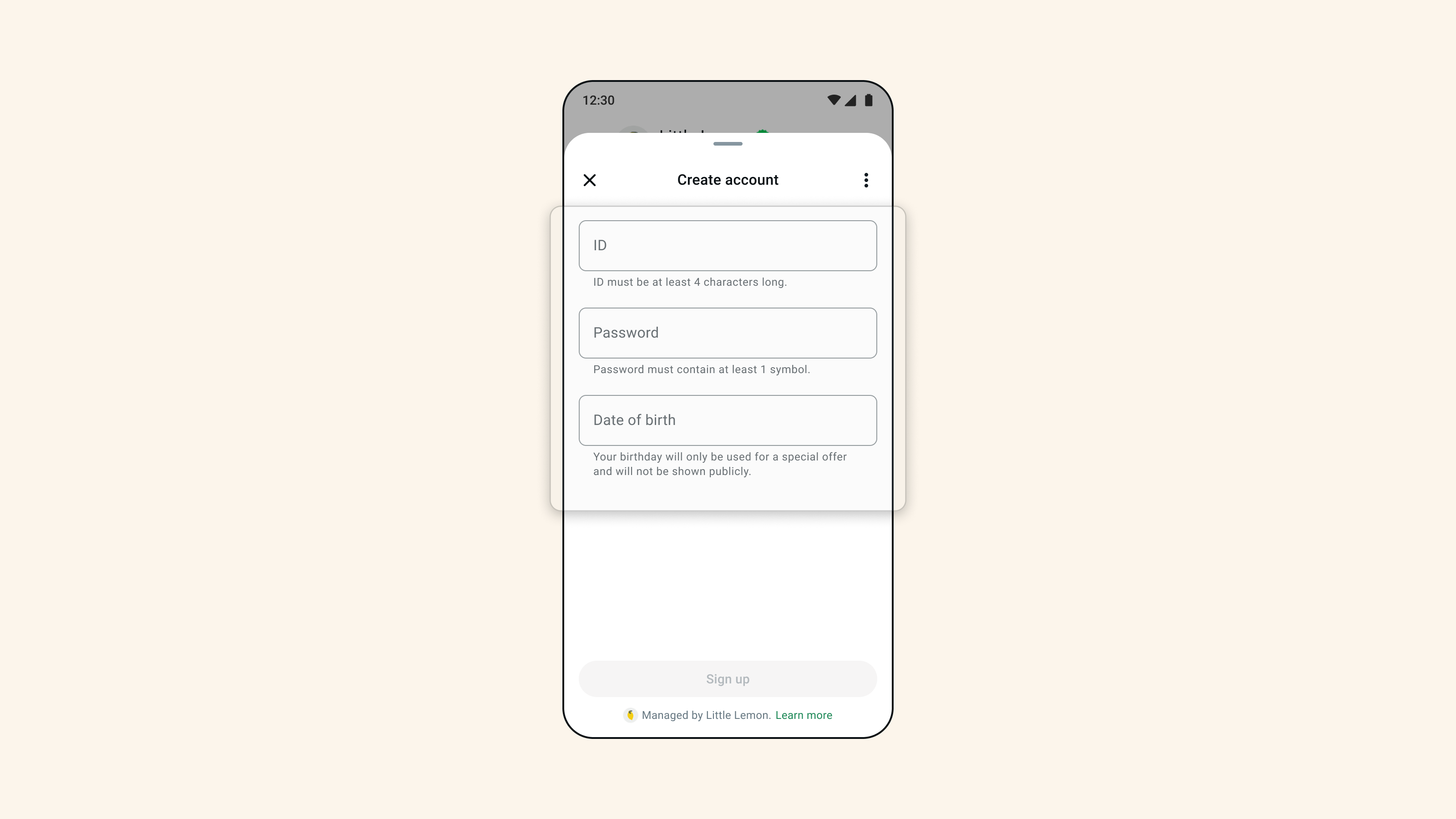
Initiation Flow
The chat should provide clarity
Users will choose to open a flow based on the clarity of the initiation messages. The exchange should feel conversational, providing context and clear task-focused actions for the user.Users want to complete a task
The CTA should go hand-in-hand with the message content. It should be short and concise, telling the user what task they can expect to complete by opening the flow.There should be no surprises
The first screen of the flow should mirror the action of the CTA. Any deviations from the task at hand will result in a bad experience for the user, resulting in them closing the flow.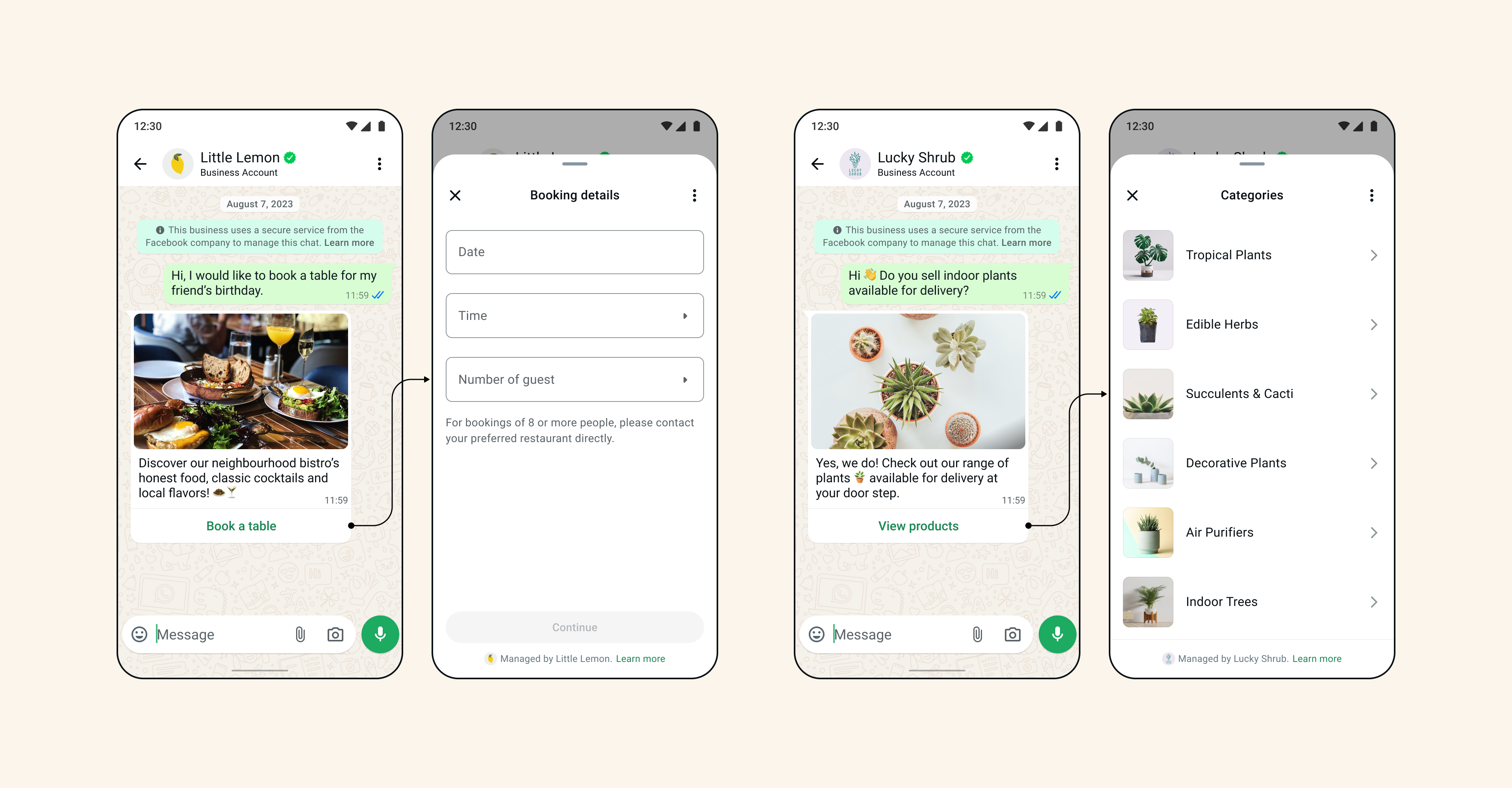
Login Screens
Some flows may need login screens to complete tasks. However, there are factors to consider when including them in your flows.Use only when necessary
Including a login screen may be off putting for some users, so try to only use them when absolutely necessary. If you do need one, set the expectations for users so it doesn’t come as a surprise.Sense of place within flow
Research has shown that login screens may confuse users within flows. Some people thought screens would take them to an external page, outside of WhatsApp. This may result in users losing their sense of place within the flow.Users need to see the benefit of logging in
The placement of login screens is key. If they are too early in the flow, users will not be motivated to continue. Showing the benefits upfront will make users want to complete the flow. Aim to make the login screen one of the last steps before completion.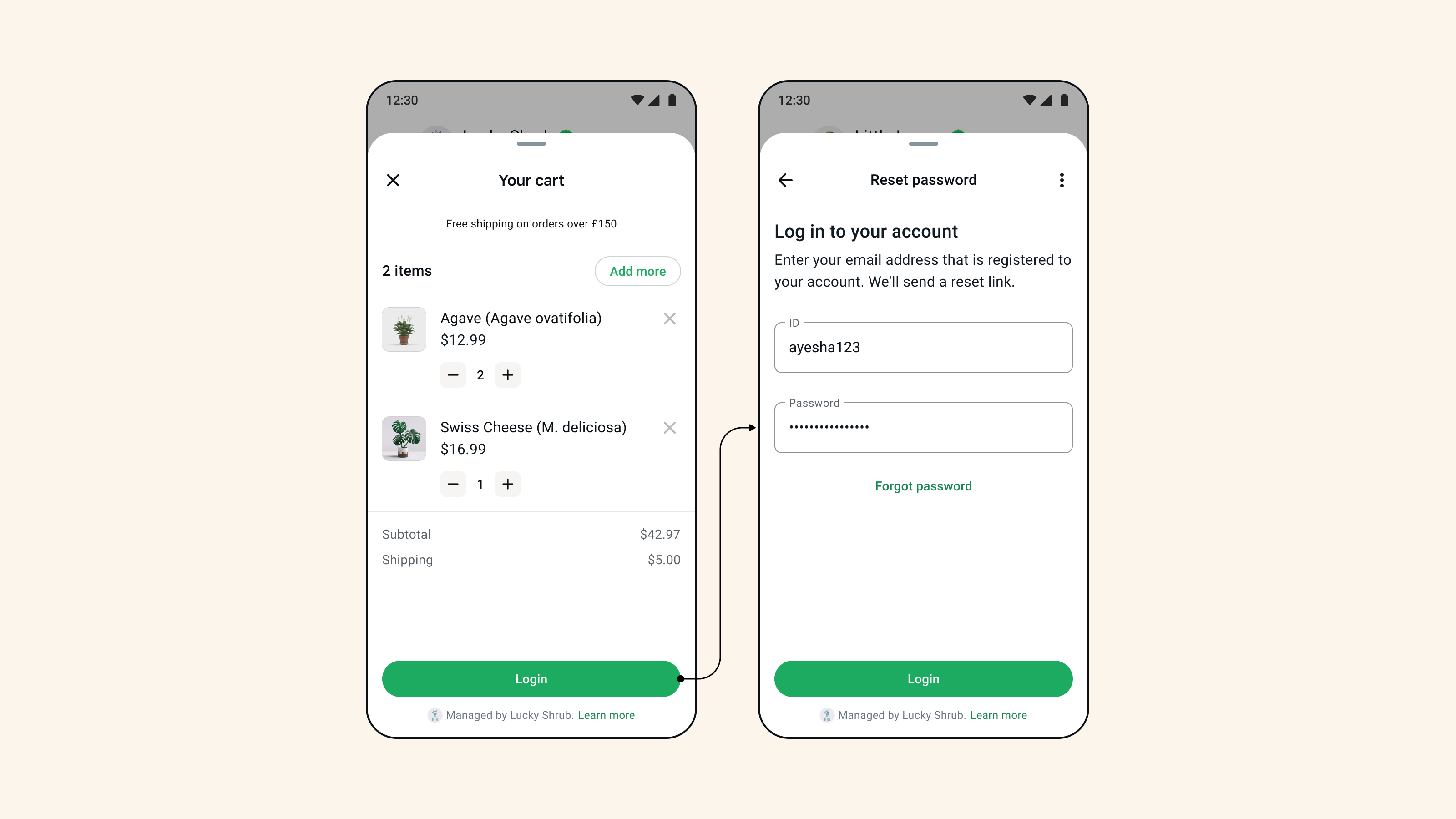
Navigation
- Always set expectations for how long it will take to complete a task, eg. “It should only take a few minutes to complete.”
- Help the user know where they are in the flow by using short, concise action-oriented screen titles, such as “Book appointment.”
- Use screen titles to show progress where possible, eg. “Question 1 of 3.”
- End the flow with a summary screen, especially if there have been multiple steps, so users can review and complete the task with clarity.
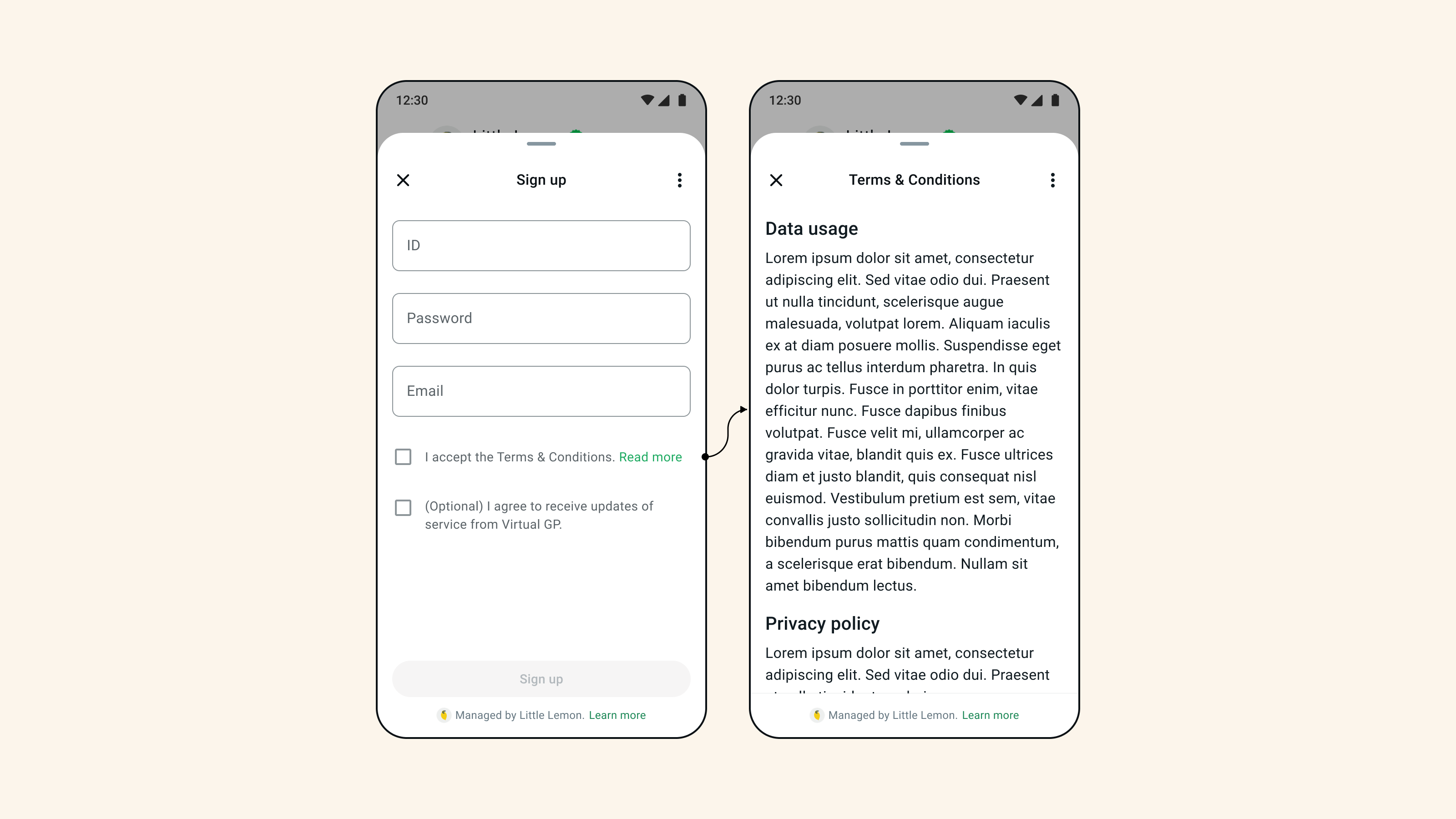
Opt-in
- It should be clear what the user is consenting to.
- You should try to include a “Read more” CTA which links to the relevant information, eg. Terms and Conditions.
Options and lists
- Keep it simple, try not to use more than 10 options per screen.
- Only use dropdown options when there are 8 or more options.
- Use a radio button if there is only one selection to make.
- Use checkboxes if the user can select multiple options.
- Always make the option at the top of the list the default selection.
Termination Flow
Set expectations
The last screen should clearly tell the user what will happen when they end the flow. They will also want confirmation of their actions. Sending a summary message should make the user feel reassured.Keep the size of the completion payload minimal
We strongly recommend to only include data inputted by the user in the Flow’s completion payload, and to keep the payload size to a minimum. Avoid leveraging the completion payload to send base64 images.Bookend your flows
We recommend responding to a user with a message when they submit a Flow. These messages should provide the user with information about next steps, and who they can get in touch with if they have any questions or if they want to edit or cancel a task. As of Flows version 5.1, upon submitting a Flow, a user will be able to access a summary of their submitted data via the Flow response message UI. By default, all user-input data is included in the response message, with the exception of text entry fields of type password and passcode. Businesses have the option to specify which data fields contain sensitive information by leveraging thesensitive property. These fields will not appear in the response message. For more details on how to configure sensitive fields, please refer to our documentation.
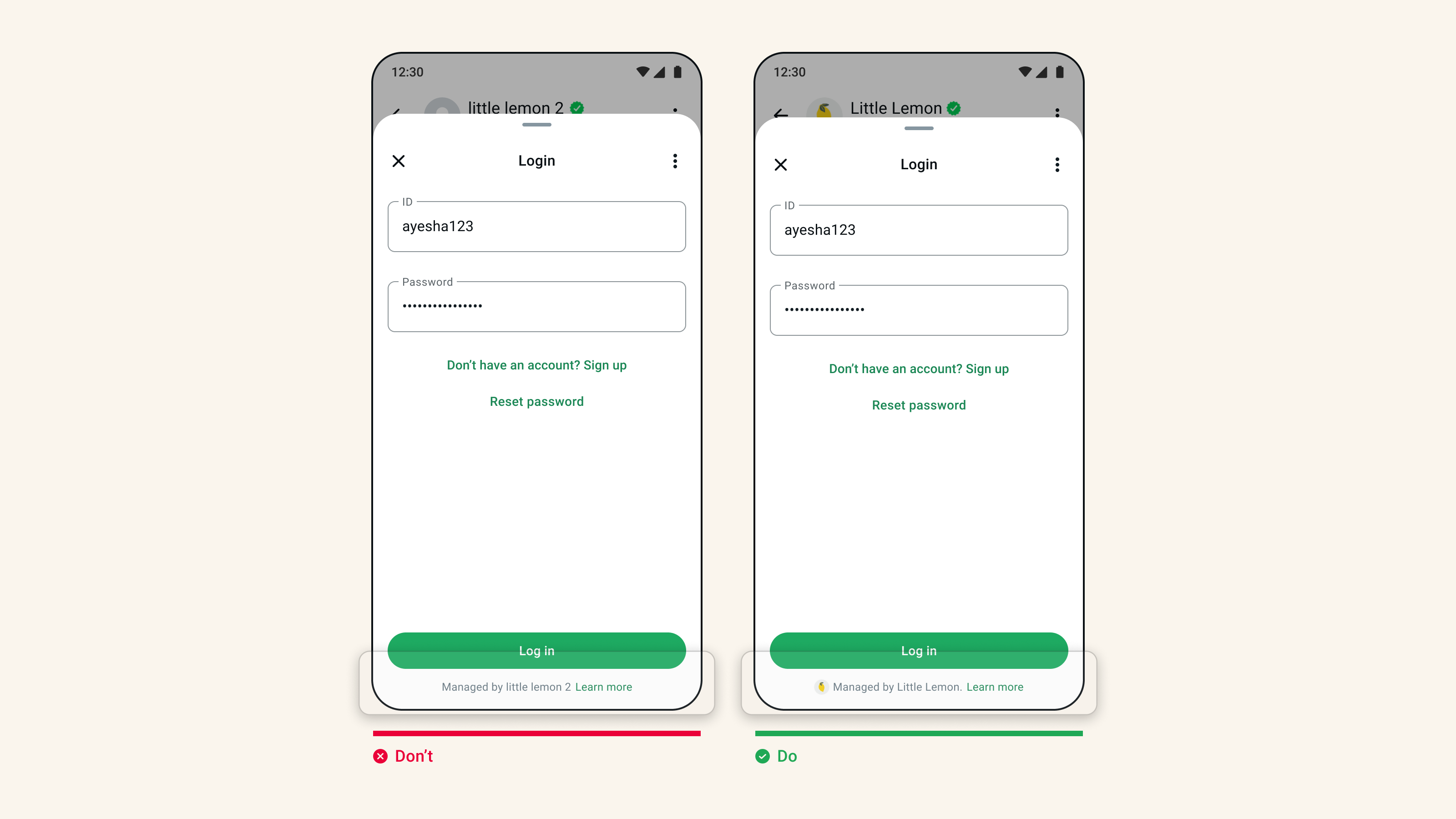
Trust and Support
- The business logo (profile photo) should be simple and identifiable in the footer so the user knows and trusts the flow.
- Add a CTA within your flow that enables your users to get in touch when needed. This can also be done in follow-up messages once the user has completed the flow.
Writing Content
- Make sure your content follows a simple, clear hierarchy using a heading, body and captions
-
Do not repeat content unnecessarily, for example:
- “Complete registration”
- “Complete registration below”